Sovereign Tower Controls and UI
Mouse-driven panels for audience, exploration, Round Table, and annex menus
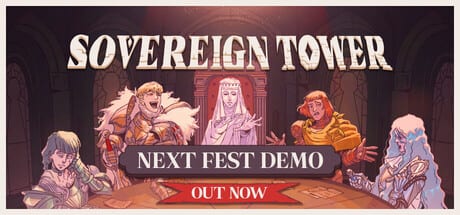
Sovereign Tower is a narrative management RPG — not an action game with combat keybinds. Wild Wits and Curve Games built the solo PC experience around clicking through structured daily phases: morning audience, tower exploration, and evening Round Table assignments. The Steam demo covering Act 0 and Act 1 teaches that flow before the August 6, 2026 launch on Windows, macOS, and SteamOS.
This guide maps where to click and what each panel does. Exact keyboard shortcuts are not fully documented in public builds; treat mouse navigation as the reliable baseline until official patch notes confirm remapping.
Start with How to Play if you need the strategic loop first. Return here when UI labels confuse you mid-week.
Core interface philosophy
The game presents one primary phase screen at a time rather than an open-world HUD. You advance by confirming choices in dialogue trees, selecting quest cards, and clicking navigation icons on the tower map. There is no real-time combat overlay — knight power expresses through assignment results, not reflex inputs.
Expect:
- Dialogue boxes with two to four response options at the bottom or center.
- Portrait panels showing speakers during audience and exploration scenes.
- Stat icons on quest cards matching Knight Stats — Strength, Agility, Charisma, Magic, Wit (some previews also show Luck).
- Faction and Treasury meters visible during audience and sometimes on summary screens.
Pause between phases is implicit — read petitions and inspect knights before confirming evening assignments.
Phase 1: Audience chamber UI
Morning audience begins when the throne room loads. Petitioners queue with name plates or portrait slots. Click each petitioner to open their dialogue branch panel.
Typical audience flow:
- Click the active petitioner or “Next” prompt when the queue highlights someone.
- Read advisor Arlin commentary when present — often mechanical hints, not optional flavor.
- Select a response: accept, defer, reject, or conditional branches tied to sovereign archetypes like Audacity or Kindness (see Sovereign Archetypes).
- Confirm when a summary line appears — accepted petitions may immediately flag Treasury spend or future quest cards.
- Repeat until the audience phase ends and exploration unlocks.
The audience UI rarely hides options off-screen; scroll or click “more” only when dialogue explicitly continues. Track faction reactions on meter bars — details in the Audience Chamber system and Factions Guide.
Phase 2: Tower exploration UI
After audience, you navigate the tower via a clickable map or corridor view. Icons represent annex wings, knight quarters, the Lady of the Tower, Lady Alwena’s Intendancy, and eventually crypt paths toward the Demon.
Exploration interactions:
- Location icons — click to enter a room scene.
- Character markers — click knights or NPCs for dialogue, loyalty scenes, or recruitment hints.
- Lady of the Tower — opens annex construction and relationship menus documented on Annexes and Crafting.
- Intendancy wing — Lady Alwena’s daily investigation panel; one knight per day — see Intendant Guide.
- Forge, witch alchemy, stables, training ground — production menus appear after annex unlock; select recipes or training targets from list panels.
Exploration time is finite each day. A visible “continue to Round Table” or day-advance prompt appears when the phase ends — do not confuse it with optional side rooms still clickable on the map.
Phase 3: Round Table UI
Evening assignments use a quest card board. Each card shows stat requirements, risk level, duration (single or multi-day), faction tags, and regional labels from the Kingdom Map.
Assignment flow:
- Click a quest card to expand requirement lines — read every stat row, not just the highest number.
- Open the knight roster panel — usually a side list or popup with portraits and stat totals.
- Drag or click to assign one or more knights depending on card rules.
- Review projected success indicators if the demo displays them; cross-check with the Quest Matcher.
- Confirm assignment — locked knights cannot take other cards until the quest resolves.
Multi-day quests show duration icons. Conflicting deadlines with audience promises are a common demo tension — Quest Success Tips covers scheduling.
Failed assignments generate result reports next day — click through summary text for faction and loyalty consequences.
Annex and crafting menus
Annex UIs share a pattern: select station (forge, alchemy cauldron, stable hand, training dummy), pick recipe or target knight, confirm resource spend from Treasury or inventory.
- Forge — weapon and armor lists with stat boost previews.
- Witch alchemy — potion categories affecting Magic, Wit, or preview Luck margins.
- Stables — mount-related options for horse-tagged quests like Goose Quest stage two.
- Training ground — multi-day knight improvement rather than instant consumables.
Return to Items Hub for crafted output reference as the wiki documents demo recipes.
Demon crypt and rewind UI
Crypt access opens through exploration after sufficient story progression — often following painful weeks. The Demon scene presents bargain dialogue and a rewind target selector listing earlier in-game days.
Rewind interface notes:
- Choose target day carefully — Brunhilda recruitment requires day 3 specifically per Get Brunhilda.
- Post-rewind, Omniscience dialogue options may appear in audience scenes — knowledge from aborted timelines unlocks lines you lacked before; see Time Rewind.
- Confirm rewind only after noting faction meters you intend to reset.
The crypt UI is narrative-heavy; read every line before accepting prices framed as horror bargains, not free reload buttons.
Kingdom map and regional labels
The demo abstracts geography — you rarely pan a grand strategy map. Instead, region names (Groveshire, Gavault) appear on quest cards and courier petitions. Clicking couriers in audience works like any other petitioner; outbound travel resolves through Round Table assignment UI, not manual hex clicks.
Rival rulers and neighbouring county alliances surface as audience dialogue and multi-day diplomacy cards — track them on the assignment board alongside local tower quests.
Audio and accessibility notes
Hildegard Von Blingin appears as The Bard in preview material, performing “There Stands the Tower” — audio plays in scripted scenes rather than a separate music menu. Subtitle panels display lyrics when scenes trigger; no player-controlled jukebox is documented in demo builds.
Text size and color contrast follow visual novel conventions. If dialogue advances too quickly, click to pause on many scenes — exact behavior may vary by patch; check Release and Demo for UI updates before full launch.
What we are not documenting yet
Public demo footage emphasizes mouse-driven UI. Until Wild Wits publishes a control rebinding screen or official keybind chart:
- Do not assume WASD movement outside exploration click maps.
- Do not assume keyboard shortcuts for fast-forwarding dialogue beyond generic confirm/cancel keys your platform may map automatically.
- Report newly discovered shortcuts on community threads; this wiki updates after verified patches.
UI mistakes that look like bugs
- Clicking “continue” before reading all quest requirement lines — not a UI bug, a planning failure.
- Missing Intendancy investigation because the wing icon sits off the main corridor path — revisit Intendant Guide.
- Assigning knights before opening annex crafting menus — effective stats lag behind UI expectations.
- Expecting multiplayer invite panels — the game is solo-only; no shared-session UI exists.
Related pages
- How to Play — strategic daily loop.
- Round Table — assignment mechanics depth.
- Best Opening Strategy — first-week UI habits.
- Guides Hub — full index.
- Demo Walkthrough — scene order when UI alone feels cold.
Learn the panels once and Sovereign Tower stops fighting your clicks — then let faction politics fight your conscience instead.
Frequently Asked Questions
Quick answers to the most common questions.
Does Sovereign Tower use action combat controls?
No. It is a management RPG driven by dialogue choices, quest assignment panels, and tower exploration clicks — not real-time combat keybinds.
How do I assign knights to quests?
During the Round Table phase, click quest cards, open the knight roster panel, assign matching stats, and confirm. See [Round Table](/systems/round-table/) for details.
Where is the Intendant investigation menu?
Lady Alwena's Intendancy wing opens during tower exploration after unlock. You investigate one knight per day from a list panel — [Intendant Guide](/guides/intendant/).
Can I remap keyboard controls in the demo?
Official keybind documentation is limited. Mouse navigation through audience, exploration, and Round Table panels is the reliable baseline in public builds.
How do Demon rewind menus work?
After crypt access, the Demon offers dialogue bargains and a day selector to rewind. Omniscience options appear in later audiences — [Time Rewind](/guides/time-rewind/).